
From database to working software in four steps.
Connect your data, build the screens, set who sees what, and release with confidence. Then change it again whenever your business changes.
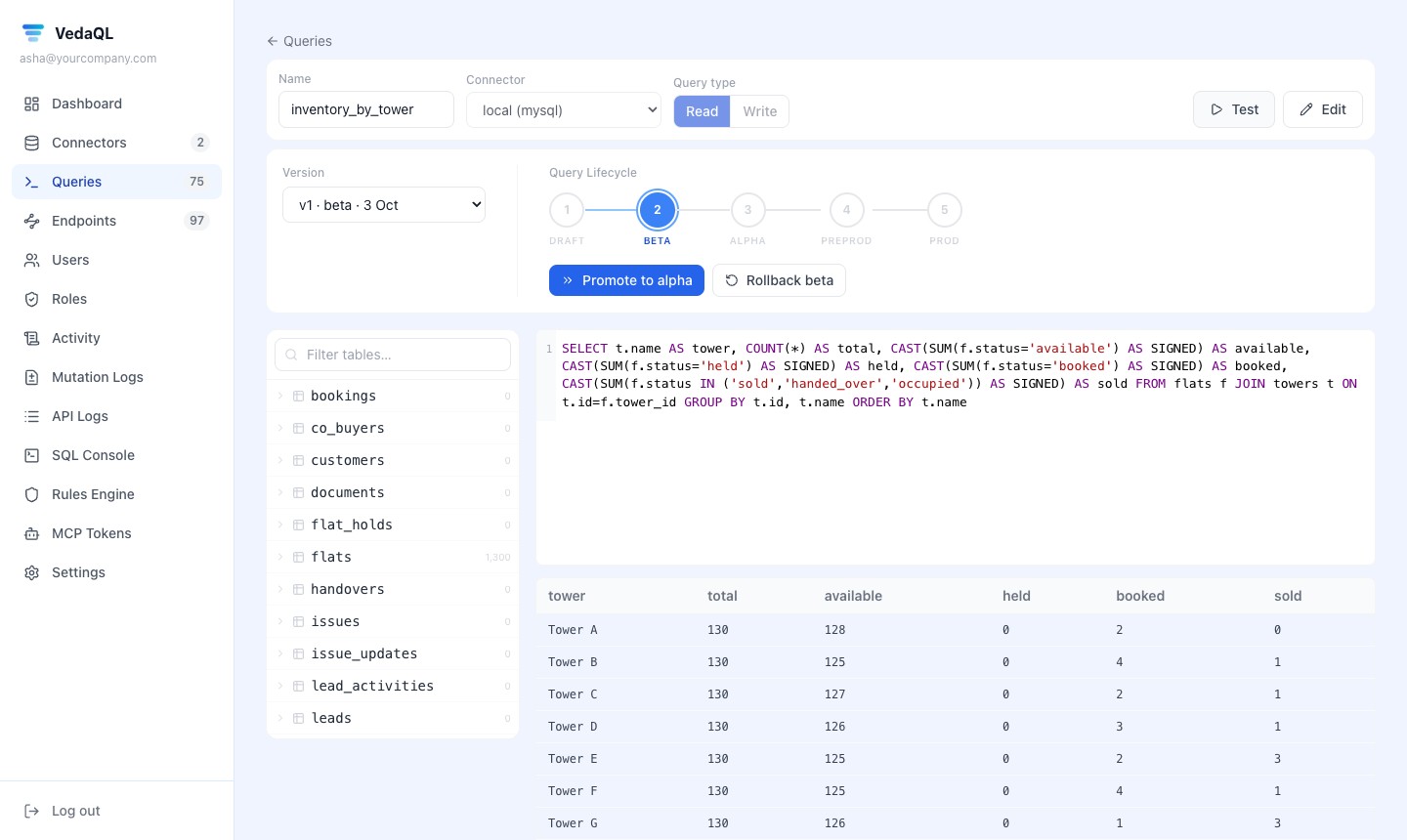
Point VedaQL at your database, write a query, get a secure API.
Connect your database
PostgreSQL, MySQL, SQL Server, MongoDB, Redis and more. VedaQL stores the password encrypted and tests the connection.
Write the query you know
Plain SQL or a Mongo query. Inputs such as {{customer_id}} are filled in by whoever calls the API.
Test it
Run it with sample inputs and see the rows before anyone else can call it.
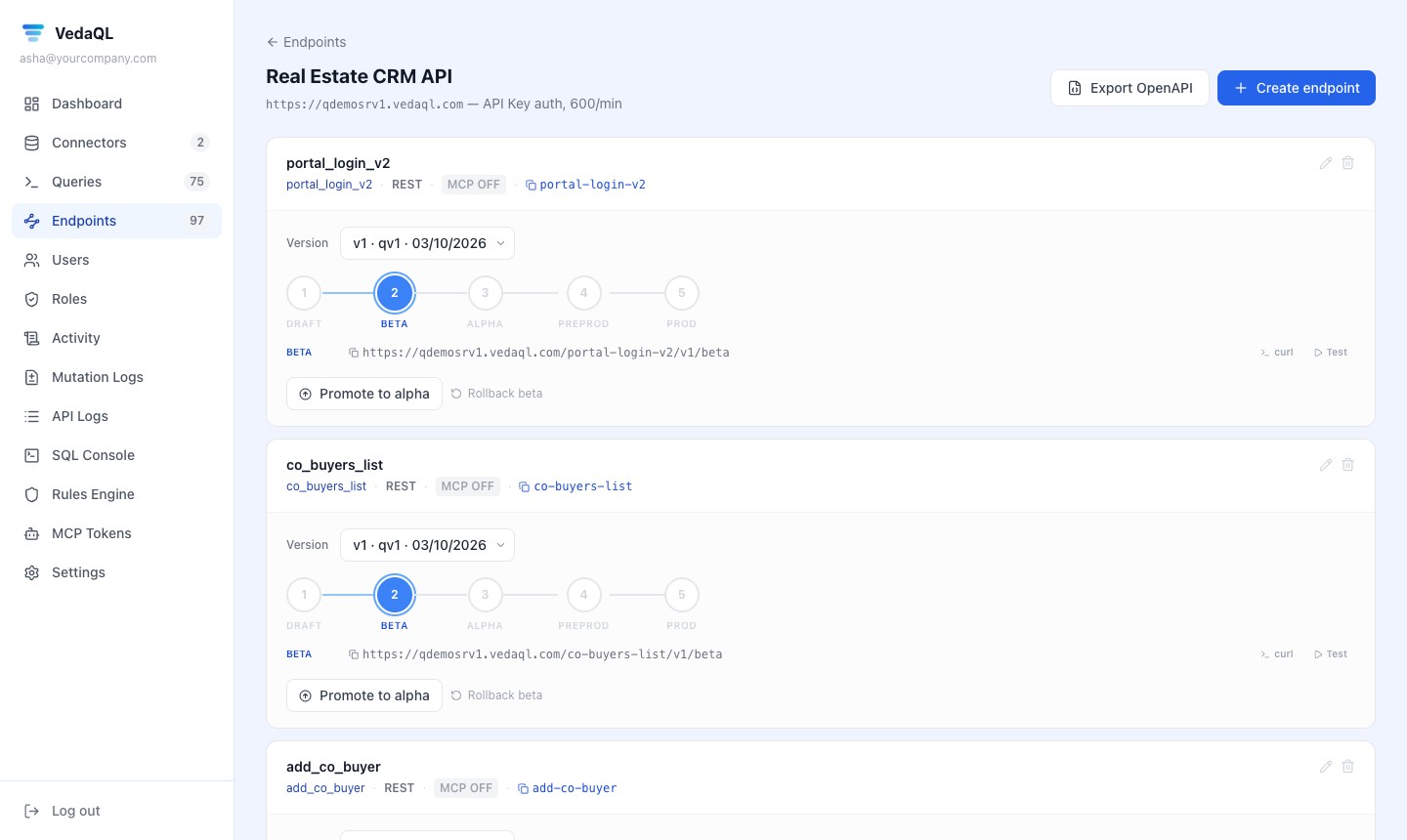
Get the endpoint
Saved queries become API endpoints with versions, a cache and logs. Already have APIs? Use those instead.
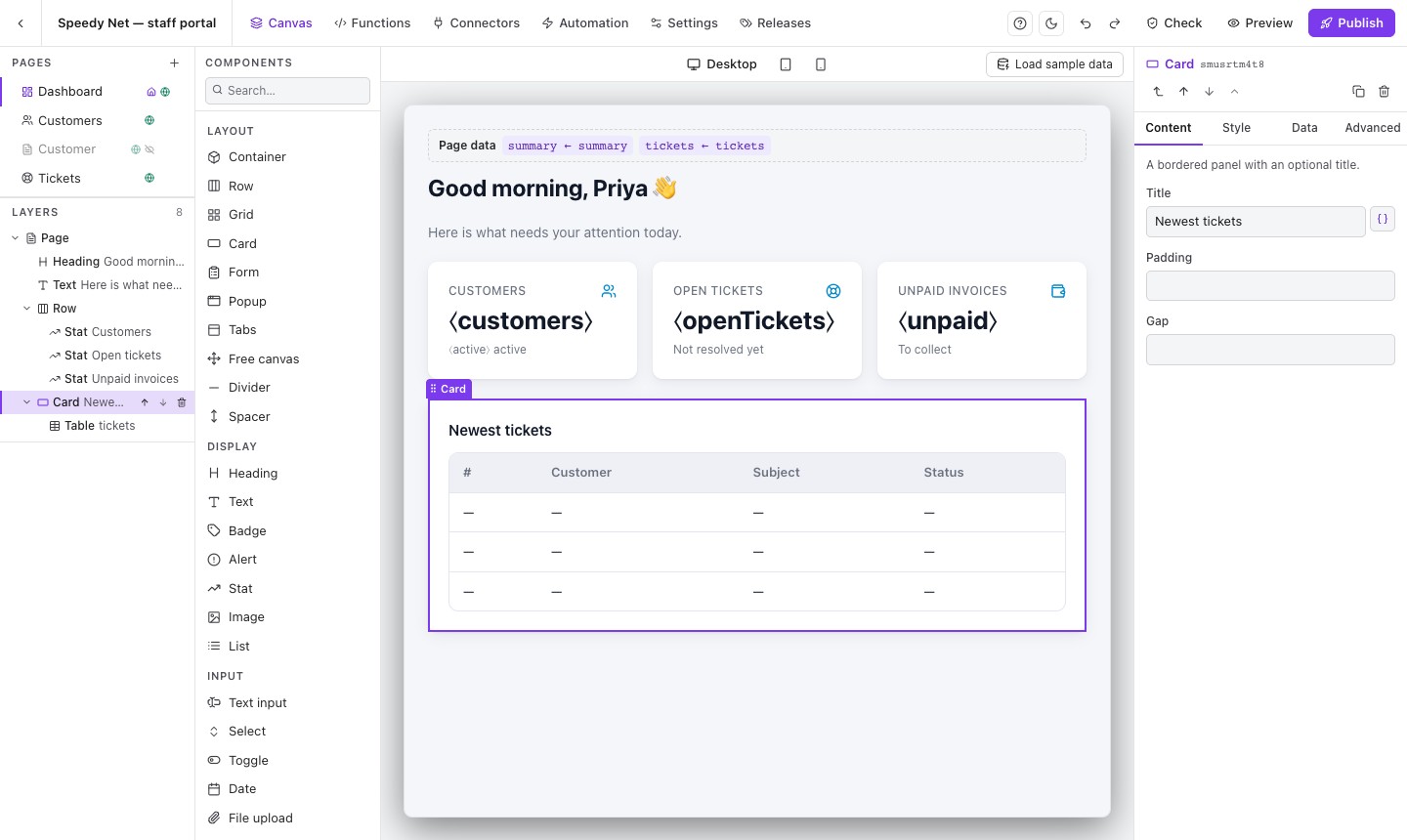
Drag and drop the pages, link them to your data — or let AI build a first version.
Start from a template or a block
Dashboard, list, detail and form pages; blocks like “table + edit popup”, card lists and boards.
Link components to your data
Add your endpoint as a connector, drop a table on the page and pick the columns. The builder shows real sample rows.
Forms that save
Add, edit and act on records. A form can send hidden values like the record id, so nobody types ids by hand.
Or describe it to AI
Connect Claude or another assistant over MCP. It builds the page in your project; you review and change it.
Sign people in, give them roles, and let the check find what you missed.
Sign-in your way
Use your own system’s login (recommended) or VedaUI accounts. One-time codes, forgot password and captcha are options.
Roles on pages, data and actions
Choose who can open each page and who can use each connector and function. The server refuses everyone else.
The user’s own records only
Session values like the signed-in user’s id are set by the server, so a person can’t ask for someone else’s data.
Check portal
Lists data anyone signed in could read, missing setup and broken links — and runs again before you publish.
| Role | Tickets page | Refund action |
|---|---|---|
| customer | Own tickets | No access |
| support_agent | Assigned tickets | No access |
| manager | All tickets | Allowed |
Test it, approve it, publish it — and roll back in one click.
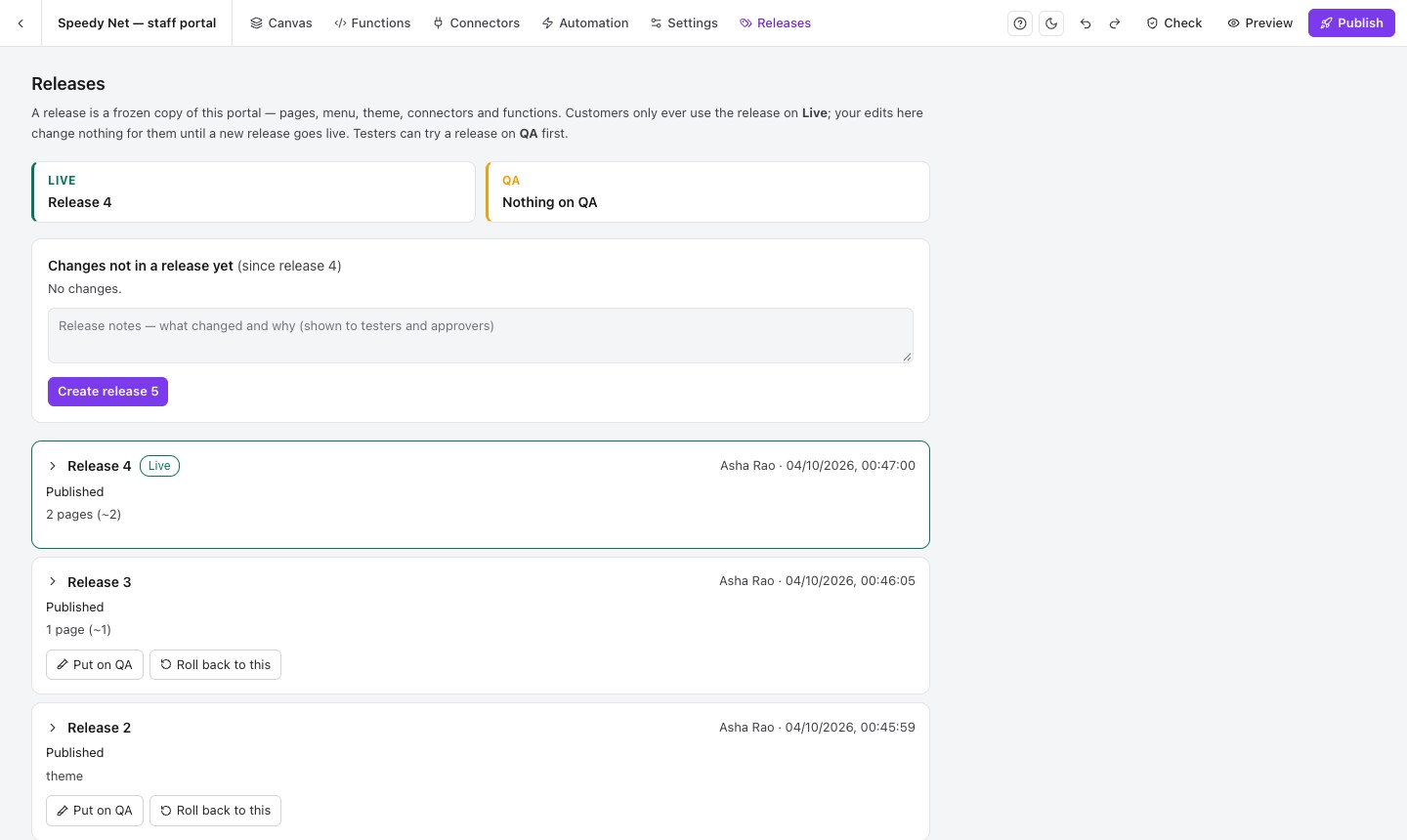
Make a release
A release freezes your pages, connectors and functions together, with a note about what changed.
QA testers
Chosen testers open the release before anyone else and mark it passed or failed.
Approvals
Optionally require approval from an admin who didn’t make the release.
Go live, or go back
People keep using the live release while you work on the next. Any earlier release can come back in one click.
That's the whole loop. Try it on the sample project.
Your trial starts with a ready sample project for a made-up internet provider, with made-up data — open it, change it, publish it.
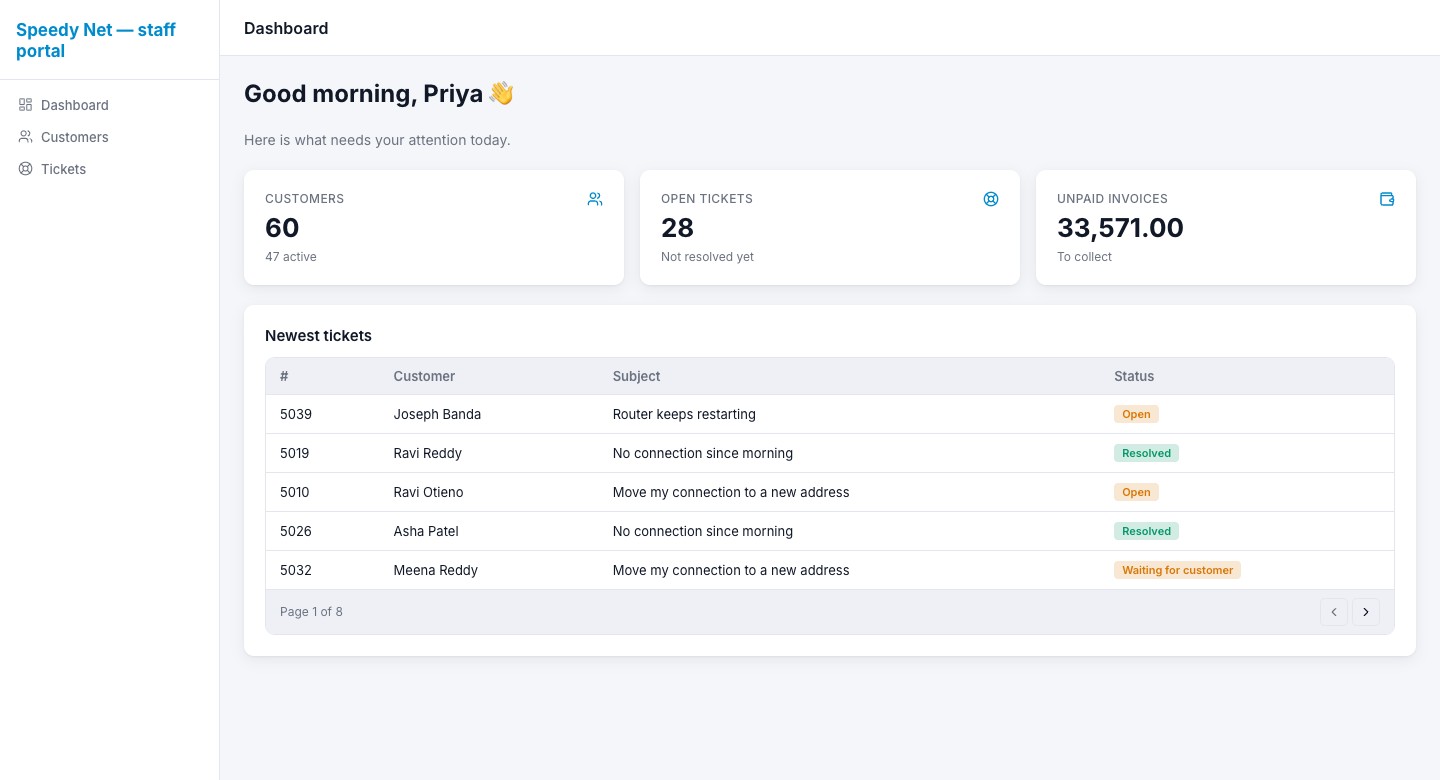
Dashboard
Numbers and the newest tickets at a glance.
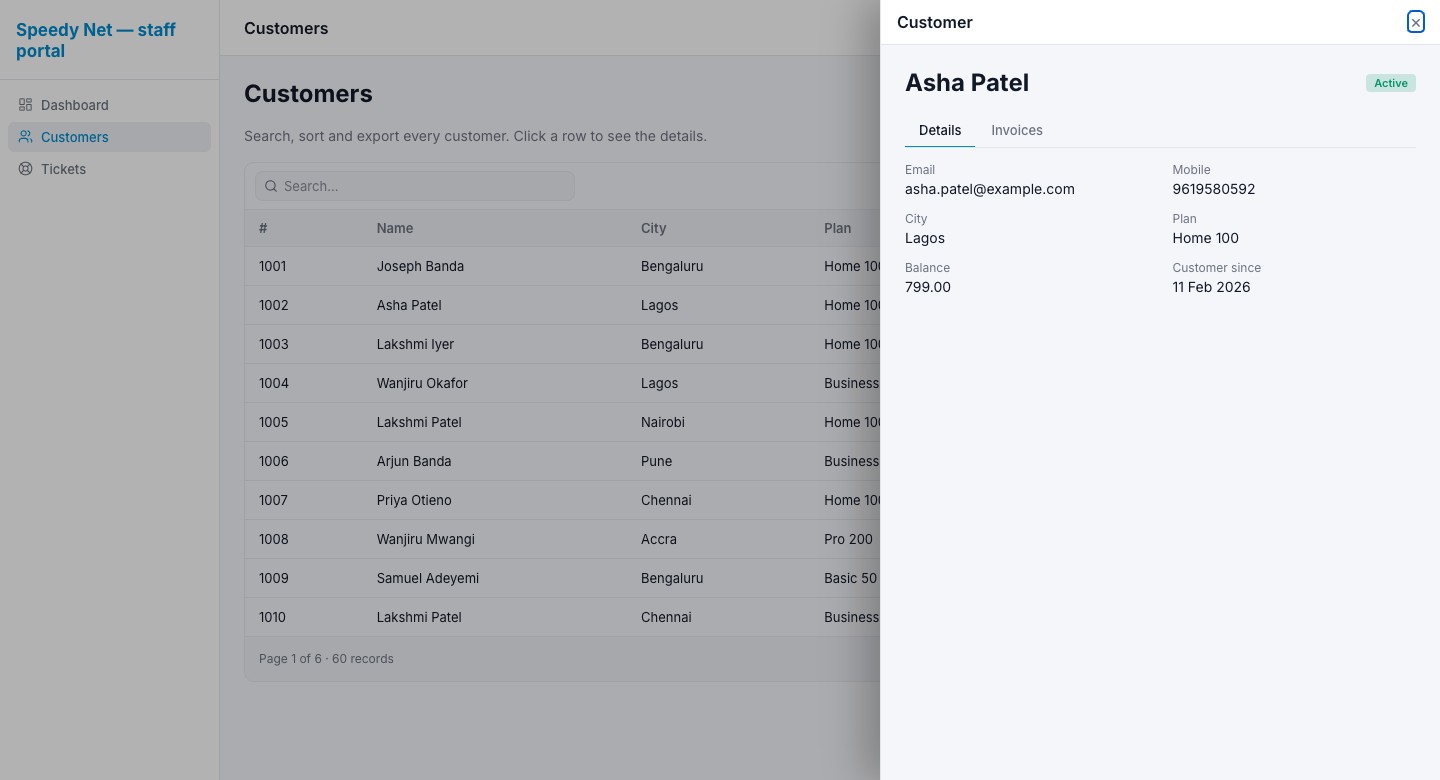
Customer list
A large list, page by page, with search — click a customer to open the detail in a side panel.
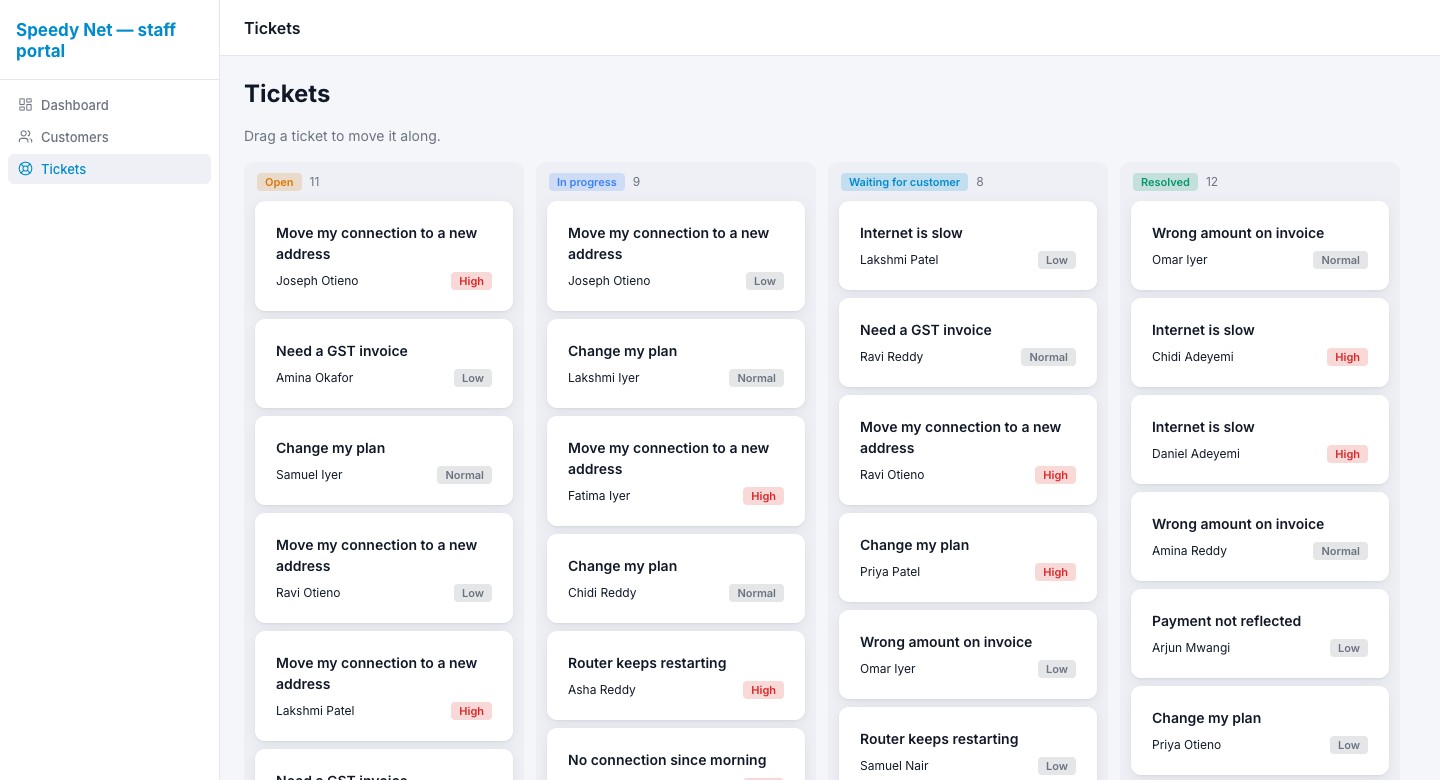
Ticket board
Drag tickets between columns; the move runs on the server.
See it with your own eyes in 2 minutes.
Start a 7-day trial — no card needed. We set up a sample project for you: open it, change it, publish it.